
The Axsy Mobile App supports record pages being opened from a dashboard widget. This provides a quick way to view a given record while viewing a Dashboard. The supported widgets are label-value widgets, and table widgets.
Please see this article for more information on creating Dashboards in Axsy Mobile: Dashboards on Any Object
Note: This article covers opening a record page from label-value, and table widgets. For details on how to configure a record list widget, see this article: Axsy Dashboards
Configuring a Record Button
In order to launch a record page from a dashboard, you must first configure a record button on a supported widget. To configure a record button, the label must follow the following pattern:
Axsy_Record_Button/{icon}/{label}/{size}
| Variable | Description | Example |
| icon | This is the icon that is displayed in the value field of the widget. This is taken from the ion-icon library. | information-circle |
| label | This is the label value. For a label-value widget this is displayed above the icon. For a table widget, this is the column header. | View Record |
| size | Optional: Controls if the record page is shown in fullscreen, or opens in a smaller window. The supported values are "fullscreen", and "halfscreen". If left blank, the record page will shown in fullscreen. | halfscreen |
NOTE: The record page that is opened is controlled by the Flow Variable provided by the dashboard Flow. This should be the ID of the record that should be opened.
When a record page has been closed, the dashboard will refresh to show any updates to data.
Example Record Button
To configure a record button with a label of "View Details", with an information circle icon as a button, that shows in a smaller window on the Axsy Mobile app, the label used would be:
Axsy_Record_Button/information-circle-outline/View Details/halfscreen
Figure 1 shows the record page being launched from an Account record in the Axsy Mobile app, to view a Contact record.
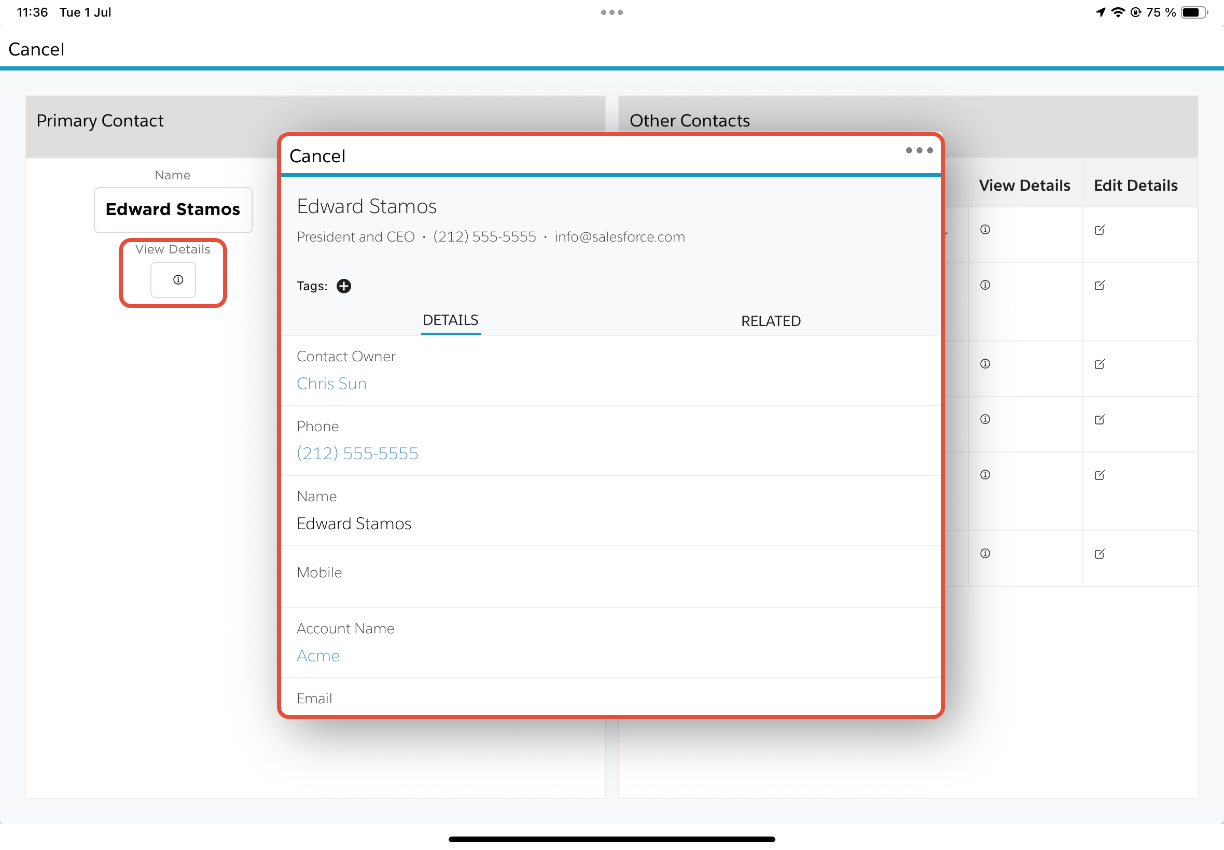
Figure 1 - Example Record Page launched from an Axsy Dashboard