
Axsy supports Dashboards on any Object to view key information about a given record. Dashboards are driven by the Flow Engine, with Output Variables controlling all the information that is shown to the User on the Dashboard. Dashboards are able to be populated offline, with the most up-to-date information that is synced to the device.
Creating Dashboards
It is possible to create Axsy Dashboards via the Axsy Config Tool. In Axsy Mobile Global Settings, under Dashboards, dashboards can be created and configured on all SObjects. Additionally, a dashboard may be configured as "Global" and will be accessible via the main menu.
In Figure 1, a Dashboard is being created on the Account SObject, to view all associated Contacts. When viewing any Account record in the Axsy Mobile App, this Dashboard will be available.
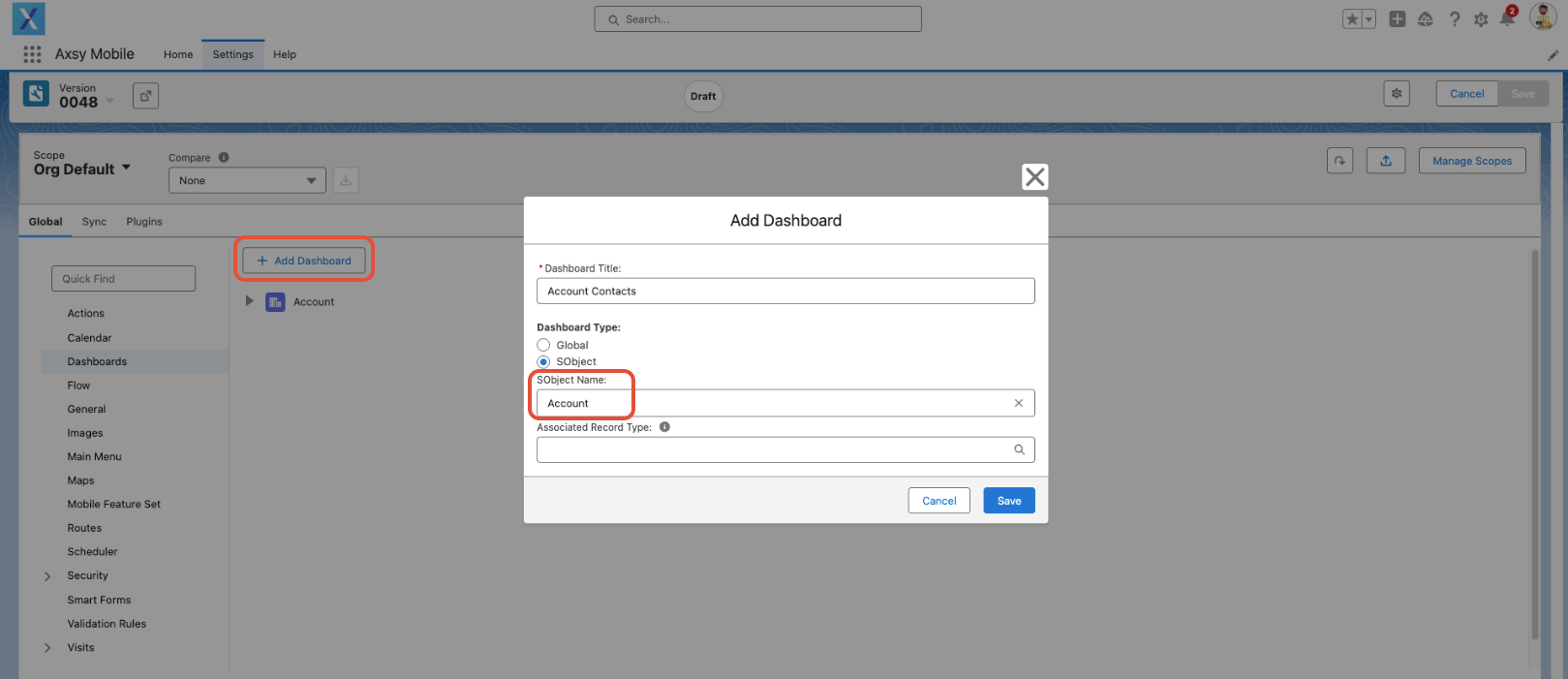
Figure 1 - Add Dashboard in Axsy Mobile Settings on Account Object
Associate a Dashboard to a Record Type
It is also possible to associate a dashboard to a specific record type via the "Associated Record Type" field. When this is configured, the dashboard will only be available for records of that record type. By default, the dashboard is available for all record types.
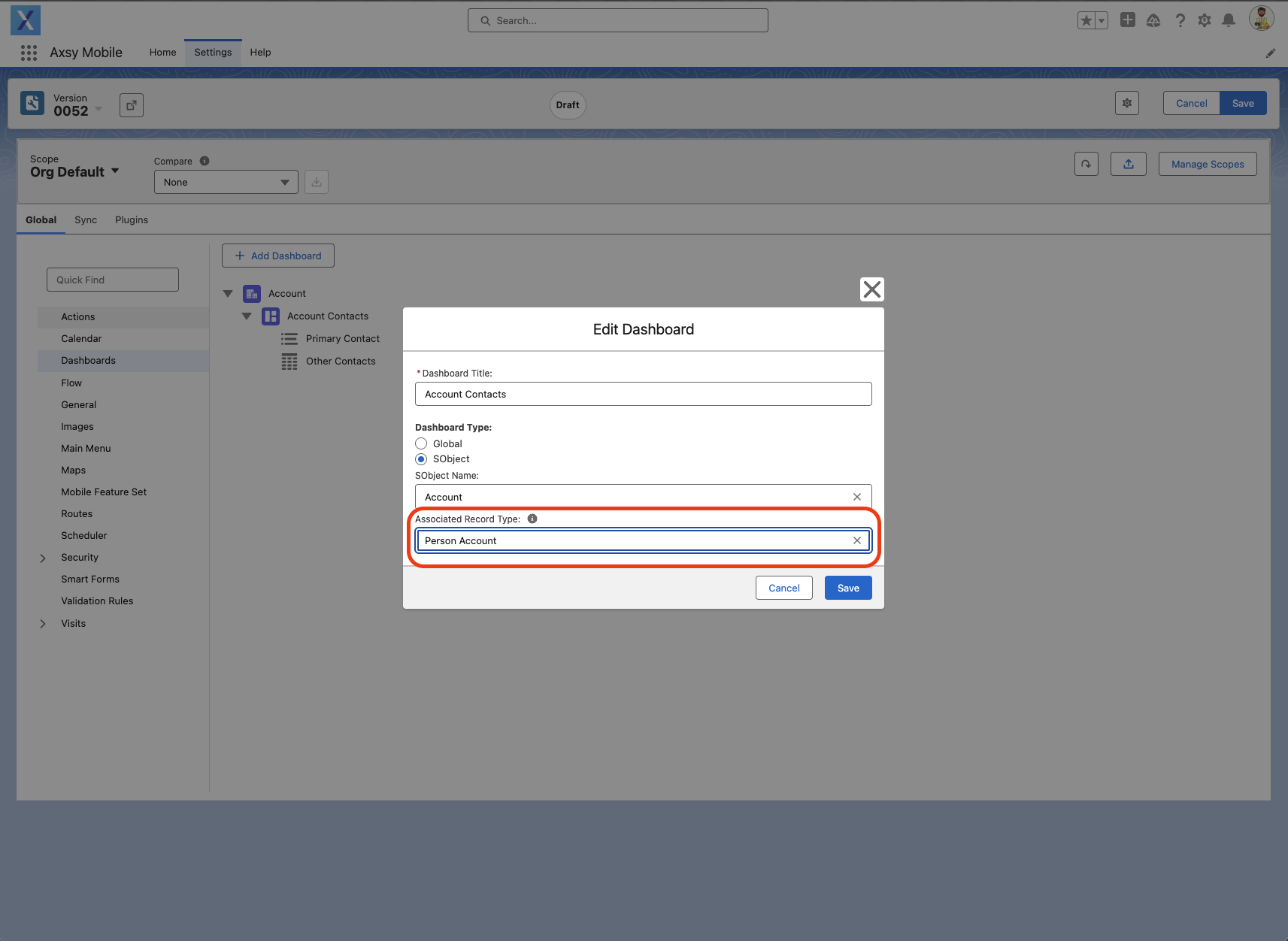
Figure 2 - Configure a Record Type For a Dashboard
Configuring Widgets
Each Dashboard is comprised of a series of Widgets. Widgets are what display the information that is seen on the Dashboard. For each Widget, you will need to provide a title, and a flow.
Please see this article for more information on each Dashboard Widget type and how each Widget type is configured: Axsy Dashboards
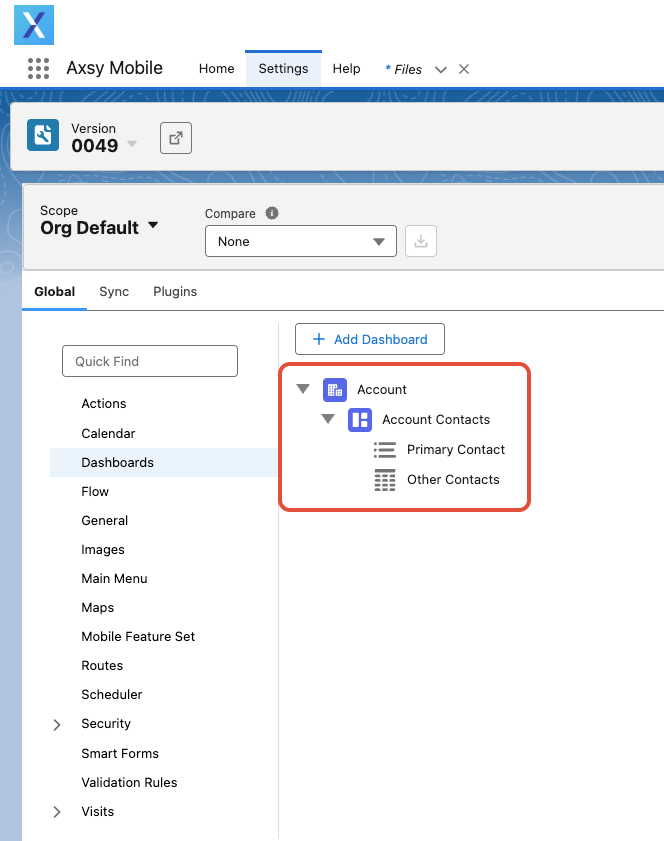
Figure 3 - Configured Dashboard with 2 Widgets
Dashboards in the Axsy Mobile App
Dashboards can be launched from a record for the SObject that has been configured. In Figure 4, the 'Account Contacts' dashboard shown in Figure 3 is available for an Account record. Pressing the button will launch the Dashboard, as shown in Figure 5.
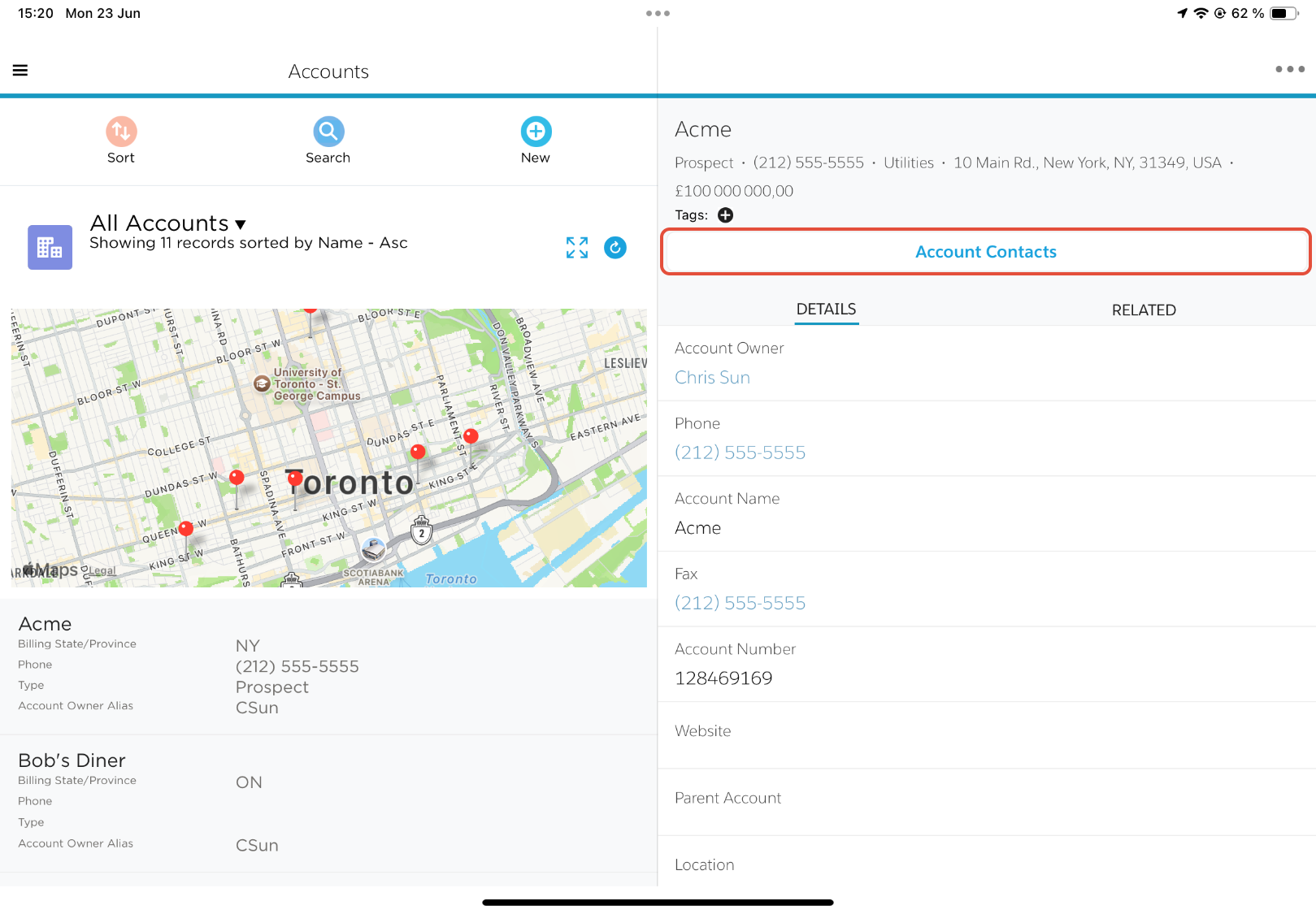
Figure 4 - Launch Flow from Account Record Page
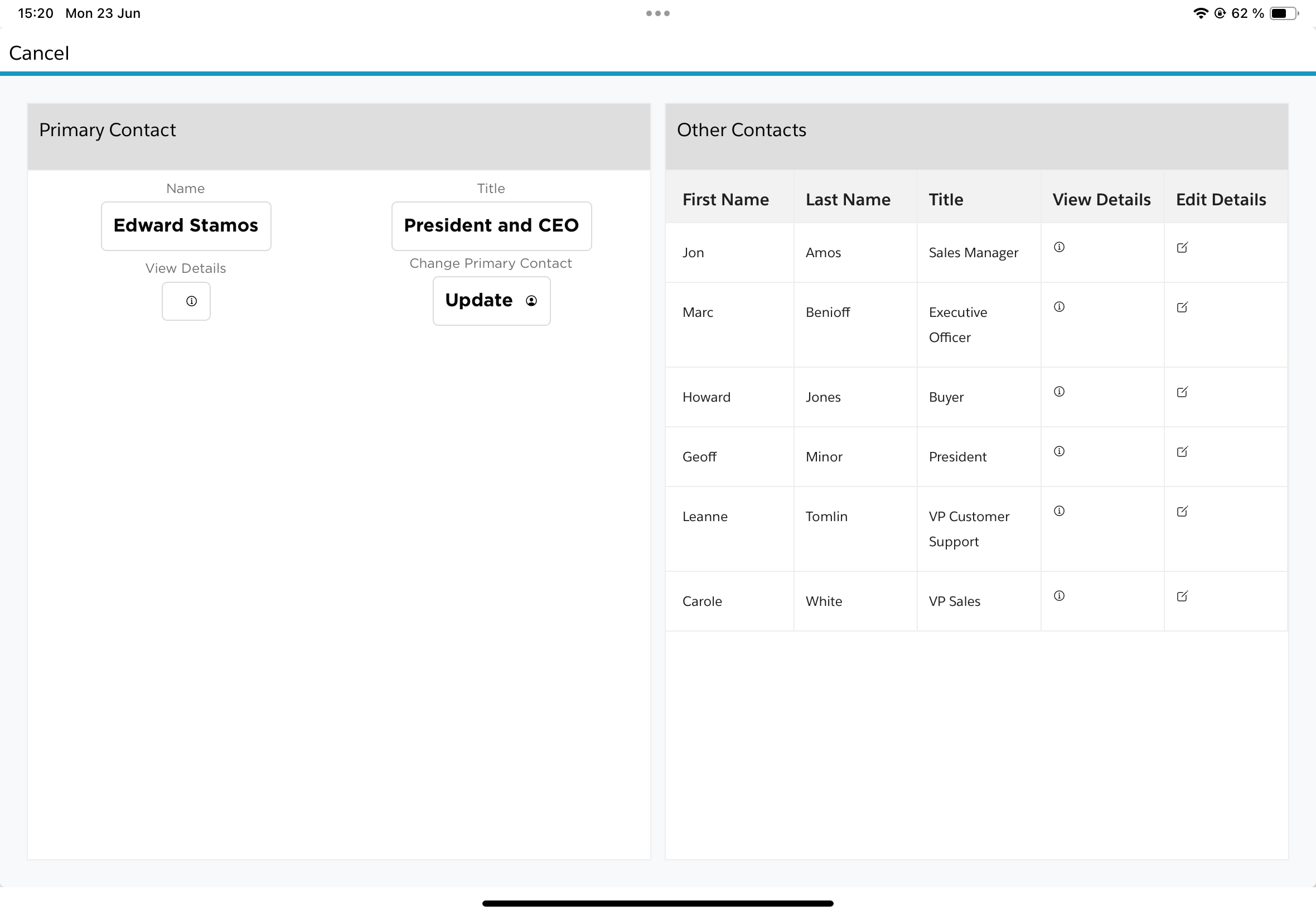
Figure 5 - Dashboard in the Axsy Mobile App
To launch dashboards that have been configured as Global, open the main menu in the Axsy Mobile app, and select the dashboard you want to navigate to. Figure 6 shows 3 global dashboards that have been configured.
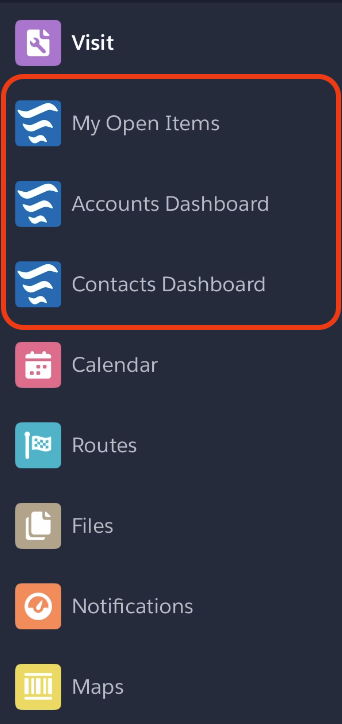
Figure 6 - Global Dashboard Configured in the Main Menu
NOTE: To view Global Dashboards, they must be configured as "Visible Options" in the Main Menu. For more information, see this article: Main Menu Settings