
Overview
Axsy Scheduler provides a flexible scheduling foundation on which customers can build automation and optimisation capabilities. This enables organisations to design scheduling logic that aligns with their operating model, business rules, and dispatch processes.
This article describes the core concepts, object model considerations, and Salesforce-native tools that can be used to implement automation and optimisation workflows with Axsy Scheduler.
Automation and Optimisation Concepts
Using the Axsy Scheduler Object Model
Automation and optimisation will typically operate across both the Salesforce standard object model and the Axsy Scheduler object model. Together, they provide enough operational and scheduling-specific data to drive any automation logic.
Examples:
- Optimisation may be targeted to only be run on Visits with specific status and/or priority
- Optimisation may be targeted to only be run on Visits currently within a pre-defined date window
- Assignment may be targeted only to Scheduler Resources who are active
Using Axsy Scheduler Tags to Help Determine Best Fit
In many implementations, automation will only assign a Visit to a Scheduler Resource who has availability during the relevant working hours. Going beyond just being available, optimisation can also include finding the Resource that is best fit for a Visit. One way to achieve this is through Scheduler Tags.
Scheduler Tags can be assigned to both Visits and Resources and are designed to be open-ended, so they can represent whatever information may be useful for your scheduling needs - across both manual assignment and automatic assignment. Scheduler Tags are part of the Axsy Scheduler Object Model and can therefore be queried and included as input to a scheduling optimisation algorithm:
Examples of Scheduler Tag uses:
- Represent geographic areas, regions, or responsibilities
- Represent the work type for a Visit
- Represent skill sets and specialties for Resources
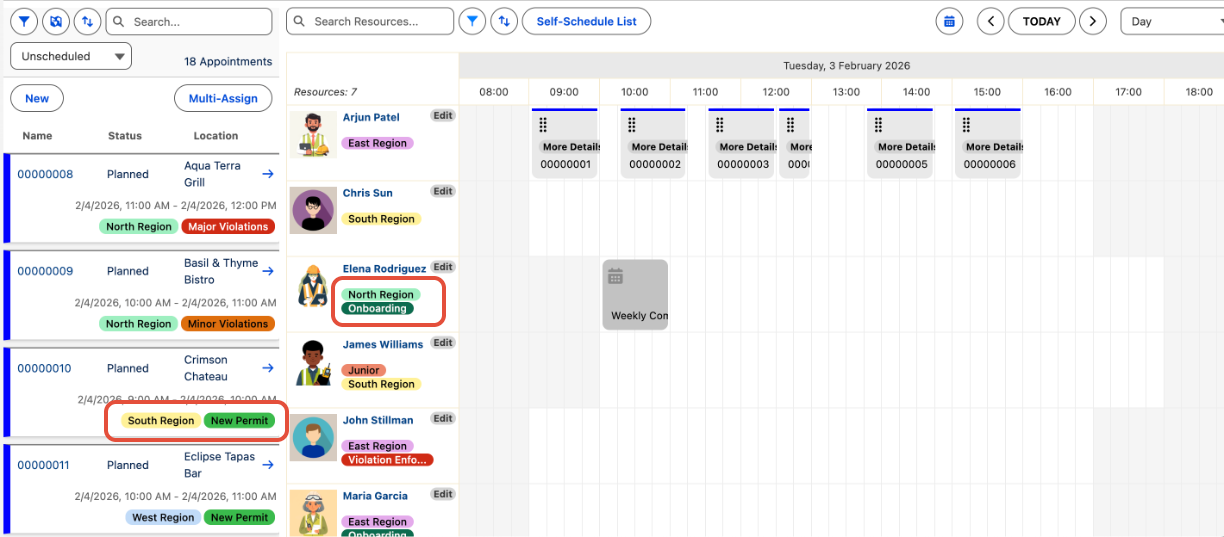
Scheduler Tags can be assigned to both Visits and Scheduler Resources
Order of Assignment
A scheduler automation process may consider order of assignment, which influences which Visits are processed first or given preference. Order of assignment is often evaluated separately from best-fit scoring, since it determines which Visits enter the optimisation process first.
Examples: Automation could give preference to Visits based on:
- Closest start date/time
- Visit priority, e.g. High, Medium, or Low
- SLA for the location being visited
Tools for Implementing Automation and Optimisation
Axsy Scheduler does not include a predefined optimisation engine. Instead, it provides a foundation that can be combined with Salesforce-native tools - such as Business Rules Engine (BRE), Apex, and Flow - to build the desired automation and optimisation behaviour.
Business Rules Engine (BRE)
Salesforce Business Rules Engine (BRE) is a configuration-driven tool that can be used to define decision-making logic that helps support scheduling automation and optimisation.
BRE combines logic configured in expression sets and decision tables/matrices and can be invoked from:
- Apex
- Salesforce Flow
Example: Details about a Visit and a Resource can be fed into a BRE Expression Set or Decision Matrix to output a score representing how well the Resource fits.
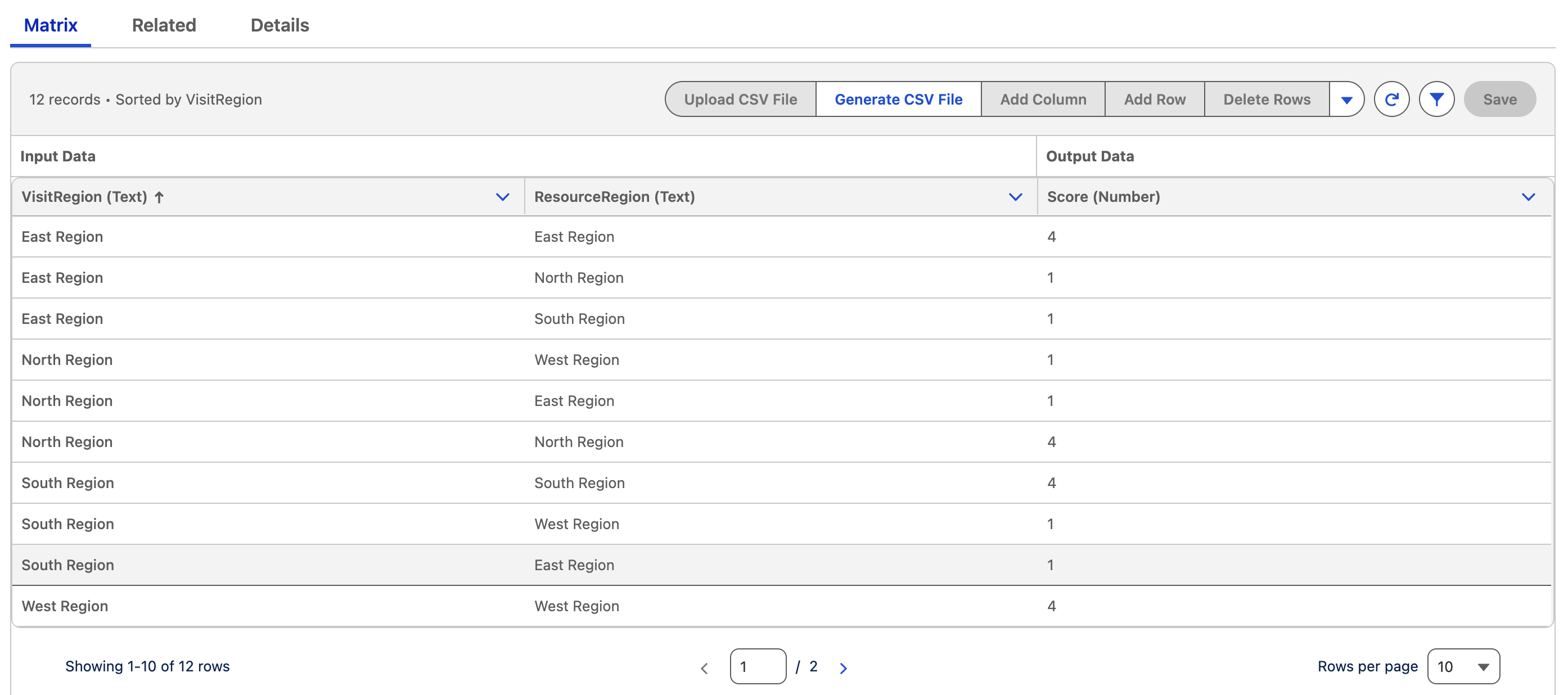
Example BRE Decision Matrix that outputs a fit-score based on Visit and Resource geographic regions
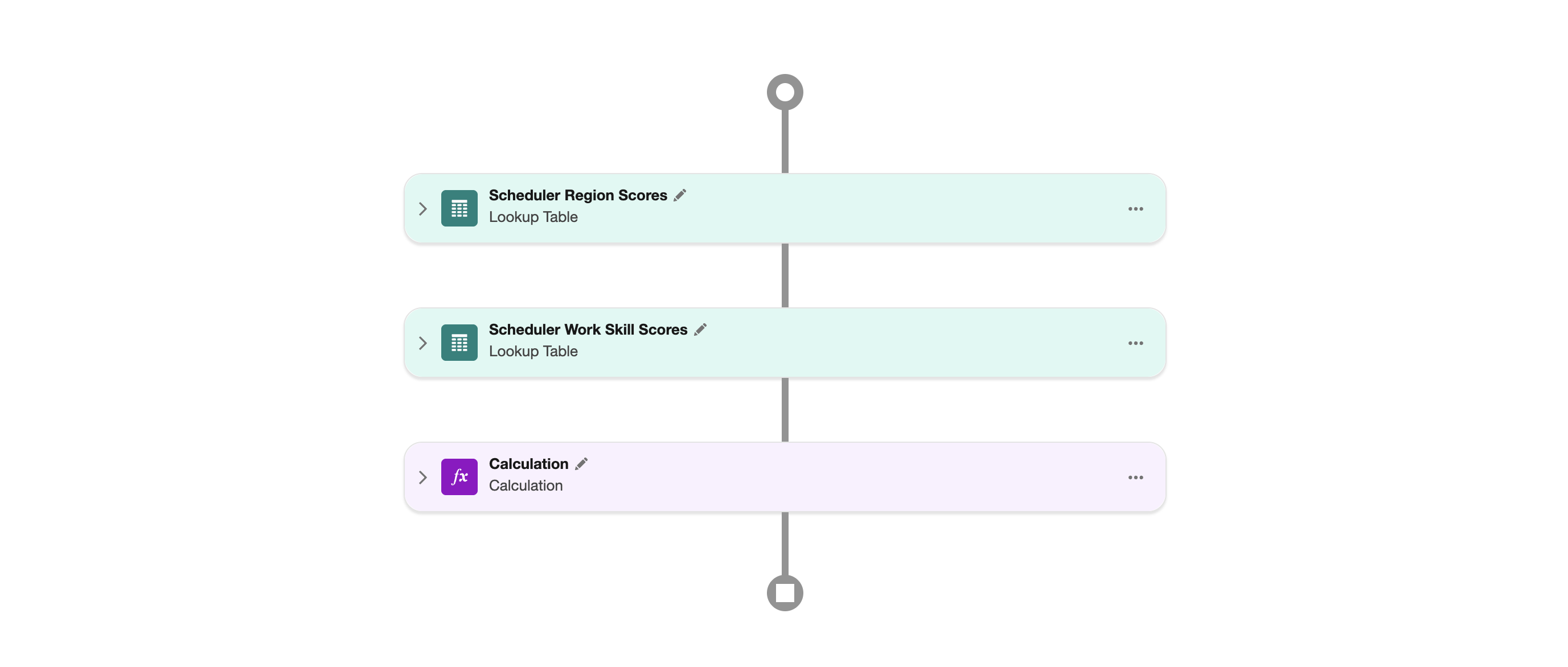 Example BRE Expression Set that sums the output of two Decision Matrices
Apex
Due to the governor limits Salesforce applies to single transactions with regards to number of SOQL queries, CPU execution time, etc., Apex is often the best fit for implementing the bulk of your automation and optimisation processes, given its ability to be run asynchronously and in batched mode across multiple transactions.
While Flow could be used for automation and can call BRE just like Apex, it is much harder to efficiently separate a Flow into multiple transactions, making it scale poorly when optimising larger numbers of Visits and Resources.
Best practice: Have asynchronous Apex generate a bell notification once optimisation is complete.
Salesforce Flow
While Flow, on its own, may not scale well enough to handle large data volumes, it can be used as a way to collect user input, orchestrate the automation process, and call any underlying Apex.
Example: You can use Flow to have the dispatcher:
- Select which Visits to include
- Select which Resources to include
- Choose how automation should prioritise which Visits to auto-assign first
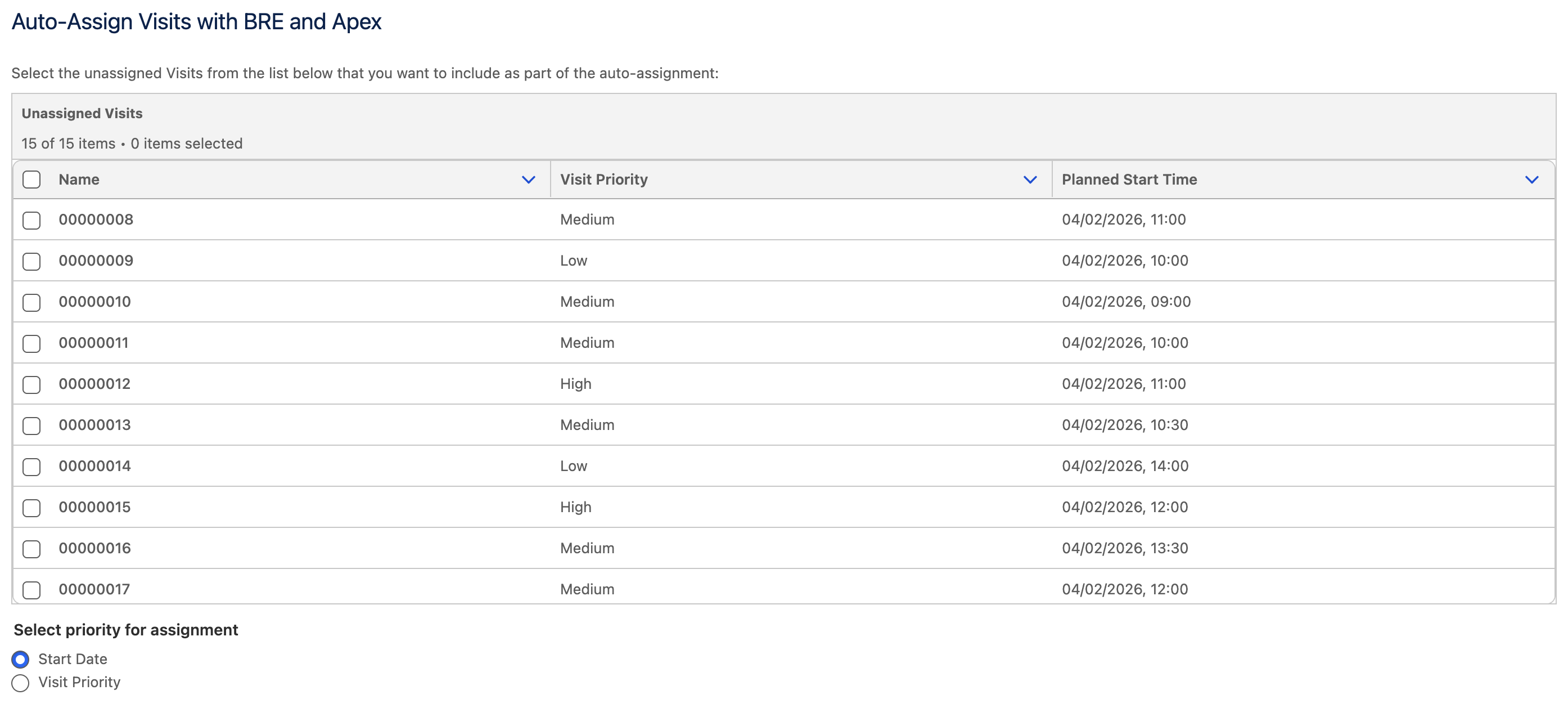
Example Screen Flow that allows a user to select which Visits to include in the automation and how to prioritise their assignment
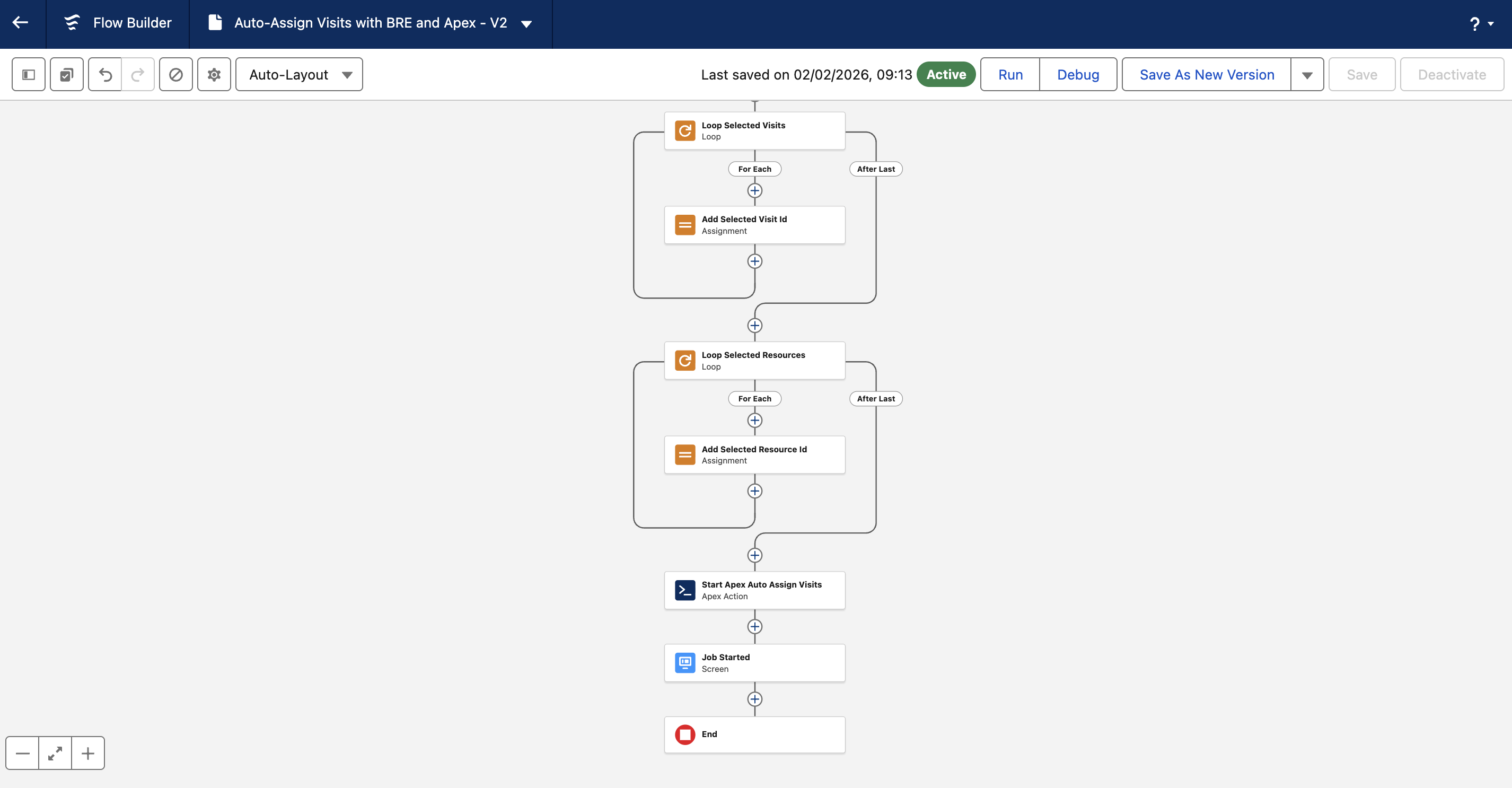 Flow Designer showing how Flow can be used to orchestrate the optimisation process which is handled via Apex